Markdown In, HTML Out: A Crash Course
Write in Markdown. Read in HTML. The two document languages of working with agents.
Most people type a vague request into an AI and get a wall of text back. The request was vague, so the AI had to guess. The answer is too long to read, so they skim it. Both directions failed.
This course fixes both directions, one format for each. Markdown is plain text with a few extra marks that show structure. A # before a heading. A - before each item in a list. You have seen it without knowing its name, because Claude and ChatGPT write Markdown every time they bold a word or hand you a list. HTML is the language web pages are built from. Every page you have opened in a browser, including this one, is HTML underneath. Neither is programming. Both are ordinary text.
Skilled users split the conversation by direction. They write to the AI in Markdown, because structure leaves nothing to guess. They ask for HTML back, because a designed page is the only long answer a busy person reads. Markdown takes an hour to learn. HTML you never write. You only demand it.
One word first. This book says agent for an AI that does multi-step work on your behalf. Today that is Claude in a browser tab. Later it gets a terminal and your files. The format rules are the same either way.
The whole course, in one picture:
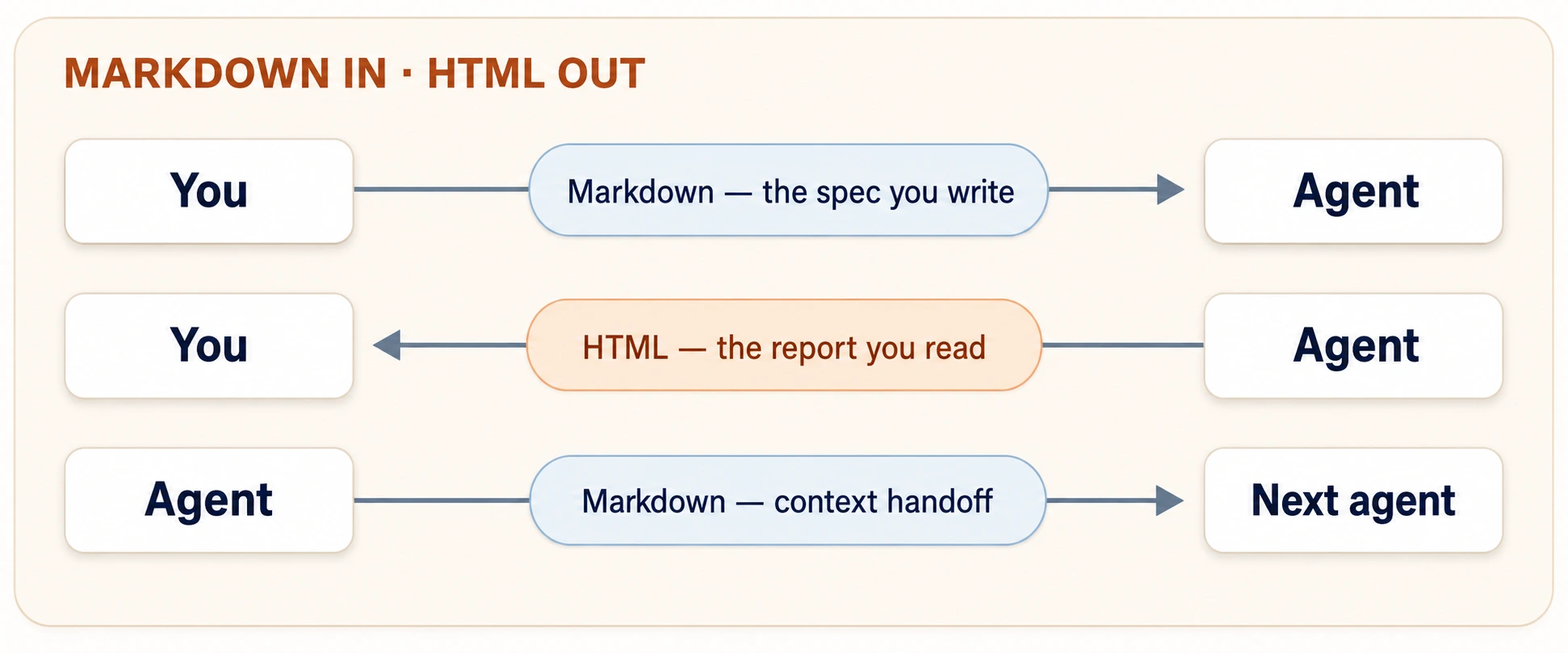
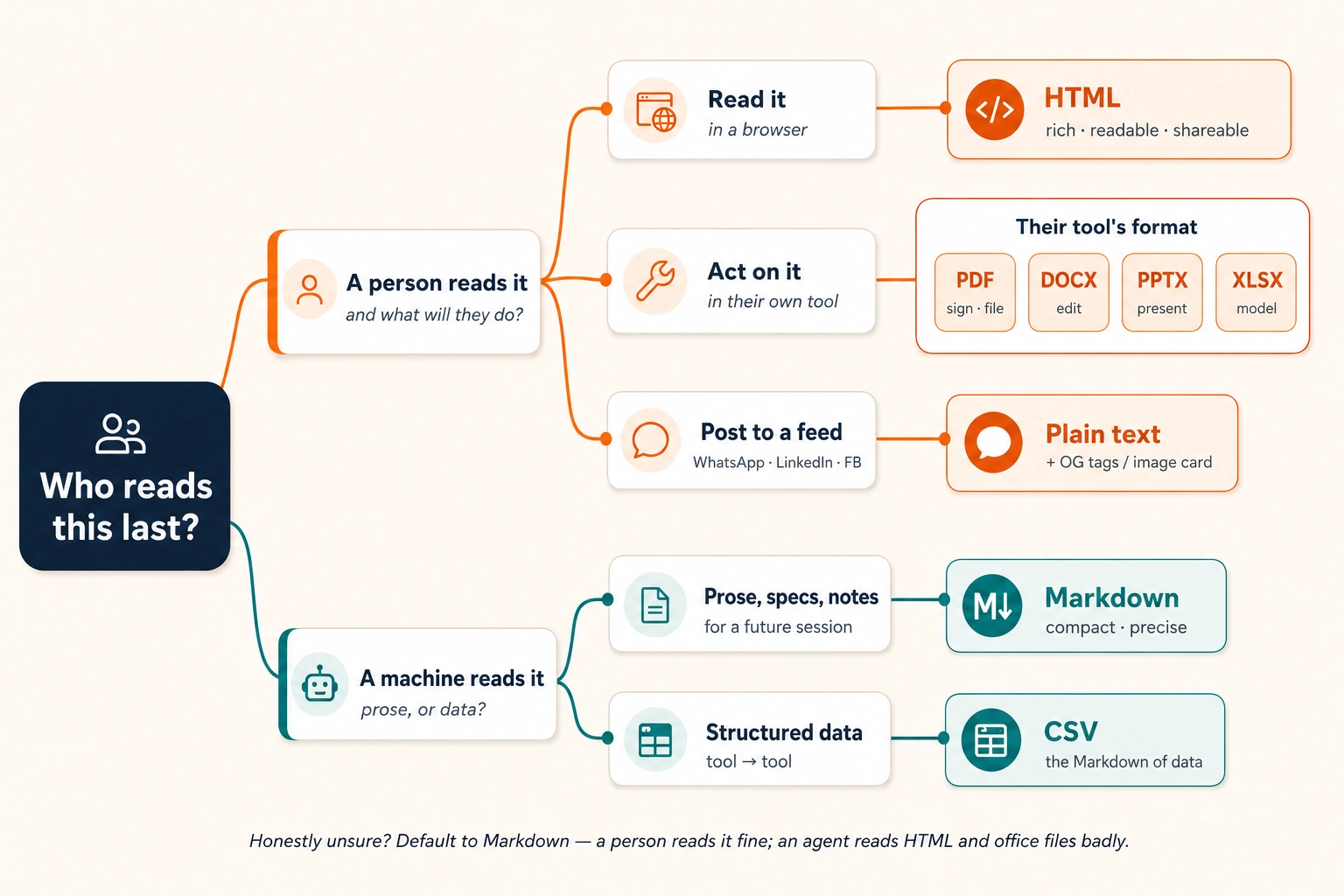
One question sits behind that picture, and it settles every format decision here. Who reads this last? A person in a browser, so ask for HTML. An AI, now or later, so keep it in Markdown. A social feed, so use plain text. "Markdown in, HTML out" is the most common pair of answers, not the only one.
Quick glossary
One line per term. Skip it now and come back when a word stops you.
- Markdown: plain text with a few marks that show structure, such as
#for a heading. - HTML: the language web pages are built from. Browsers read it well, agents badly.
- plain text: text with no formatting marks at all.
- agent: an AI that does multi-step work on your behalf.
- artifact: a live document the AI builds in a panel beside the chat.
- Canvas: what ChatGPT and Gemini call their artifact panel.
- brief: the short description of the reader and the result you write around a request.
- Who reads this last?: the one question that decides the format.
- asymmetry: a difference between two directions. Here, Markdown goes in and HTML comes out.
- specification: a document that tells an agent what to build and what to leave out.
- Intent Layer: where your written intentions live, precise enough for an agent to act on.
- code fence: three backticks around text the AI should treat as data, not as an instruction.
- alt text: the words inside an image's brackets, which an AI reads instead of the picture.
- checkable bullet: a requirement a reviewer can mark yes or no without discussion.
- Digital FTE: an AI agent built to carry a whole role, the way an employee would.
- spec-driven development: building by writing the specification first, then regenerating from it.
- tokens: the small chunks of text a model reads and writes. Usage is counted in them.
- SVG: a picture drawn by code instead of stored as a photo. How HTML shows diagrams and charts.
- self-contained: a page whose design and behavior sit inside one file, with nothing beside it.
- repository: a project folder stored on GitHub. GitHub runs on Git, a tool that saves every version of a file.
- Open Graph tags: hidden labels in a page that social apps read to build a link preview card.
- CSV: plain text with commas between the values. The simplest way to move data between tools.
- motion: one of the three ways you work with an agent. Chat, terminal, or desktop.
Prove it in two minutes
Before any theory, run the whole course once. Open Claude.ai and paste the prompt below. A free account takes a minute, and ChatGPT or Gemini work the same way.
Make me a small web page as an HTML artifact: a welcome card for a neighborhood tuition center. A colorful holiday-notice banner on top, three example courses with monthly fees in a neat table, and a WhatsApp contact button. Keep it readable on a phone.
Claude thinks for a moment, then opens a panel beside the chat and builds a real, styled page in it. Banner, table, button. That panel is an artifact, which means a live document the AI builds next to the conversation instead of inside it. ChatGPT and Gemini call theirs Canvas. If you got a wall of code, say show it to me as a rendered artifact. Now find the share or publish control on that panel and open the link on your phone.
That took two minutes. Structured lines went in. A designed page came out. A link made it shareable. The fourteen concepts below make each step deliberate, so they keep working when the stakes are higher. By the end you will write a clean Markdown spec, turn it into an HTML page someone can open from a link, and know which format any output needs.
📚 Teaching Aid
View Full Presentation, Markdown In, HTML Out
This crash course assumes the Foundations before it. Read What AI Actually Is for the mental model of the machine, and AI Prompting in 2026 for the habits. Load the right context. Brainstorm, then iterate. Grade the output out of 10. This course gives those habits a file format to live in. The tool walkthroughs live in the Agentic Coding Crash Course and the Cowork & OpenWork Crash Course, and you need neither here.
- One free chat account. The examples use Claude.ai. ChatGPT or Gemini run every chat prompt here unchanged. Where a prompt says "artifact," say "Canvas" on those two. On any other tool, ask for "a single HTML file" and it works the same.
- Web access turned on, so the AI can fetch the links you include. If a link example does not work, check the web search setting.
- A phone, to judge what you make the way your readers will see it.
Reading takes about an hour. The seven closing prompts add about thirty minutes. Run them as you go, because reading gives you the vocabulary and running them gives you the skill.
The course in brief
Fourteen concepts, in four parts.
- Part 1, the two languages. Why an agent needs structure, and why you write in one format but ask for another.
- Part 2, Markdown. The five marks you need, then your first specification.
- Part 3, HTML. When to ask for it, how to ask well, and what to do when the reader wants a feed post or a file.
- Part 4, one exercise. The same job run three ways.
Part 1: The two languages
1. Why agents need structure
Here is the same request, written twice.
Unstructured:
I want a page for my tuition center, it should look professional
and have our courses and timings and a way for parents to contact
us, also fees, and it should work on phones since most parents
use phones, oh and put the Eid holiday notice somewhere visible.
Structured:
# Tuition Center Landing Page Specification

## Goal
A single-page site parents visit from their phones to check
courses, timings, fees, and contact info.

## Requirements
- Mobile-first layout (most visitors are on phones)
- Course list with timings and monthly fees
- Contact section: phone, WhatsApp link, location
- Holiday notice banner at the top (currently: Eid holidays,
  center closed June 6-9)

## Out of scope
- Online payments
- Student login
Both contain the same information. But the first forces the agent to guess the structure. Is the holiday notice more important than the fees? Is "professional" a requirement or a feeling? Is "a way to contact us" a form or a phone number? Every guess is a place the agent can go wrong. And an agent that guesses wrong does not look wrong. It looks confident.
The second version makes the structure explicit. Headings declare what kind of information each block is. Bullets declare that the requirements are a set. The "Out of scope" section states what you do not want, which is half of every good specification. A specification is a document that tells an agent what to build and what to leave out.
This is why Markdown is the specification language of agentic work. Agents are trained on enormous amounts of Markdown, so they read its structure directly. A # heading is not decoration to them. It is a signal about importance. Later chapters call the place these written intentions live the Intent Layer, which means human intent written precisely enough for an agent to act on.
An example from outside software. A school administrator asked an agent for the annual sports day plan. Her request ended with "make sure the younger kids aren't in the afternoon heat." The draft scheduled the under-8 races at 2 p.m. anyway. The constraint was buried mid-sentence, so the agent treated it as a preference. She rewrote it with a ## Hard constraints heading holding one bullet. "All under-8 events must finish before 11:30 a.m." The next draft complied. Its place in the structure had changed, not its wording.
The habit, stated once. Anything an agent must not get wrong belongs under its own heading or in its own bullet, never inside a sentence.
2. The asymmetry: Markdown in, HTML out
Markdown is the input language. Is it the output language too? Until recently the answer was yes. Agents answer in Markdown by default, and for short answers that is fine. The alternative is HTML.
But if your picture of AI output is a wall of bulleted text, that picture is out of date. In a widely read essay, Thariq Shihipar of Anthropic's Claude Code team described why the team stopped asking for Markdown output and started asking for HTML. His reasoning, in plain words:
- Long Markdown does not get read. Past about a hundred lines, people stop reading a Markdown file, and agents keep writing longer plans as their tasks grow. The honest test is whether you would read the thing top to bottom. An unread plan is a plan you did not really approve.
- Markdown has a low ceiling. Headings, lists, tables, and not much else. When an agent needs to show you a workflow, a color palette, or a layout, Markdown falls back on ASCII art.
- HTML has almost no ceiling. Styled tables, diagrams, annotated code, working controls. There is little an agent can know that HTML cannot show a person.
- HTML is easy to share. Browsers render it with no install. A colleague clicks a link and reads a designed page. Nobody opens a raw text file.
- Markdown's best feature is fading. Markdown was great because people could hand-edit it. Now you prompt the agent to edit its output. Once the agent edits, the format only has to suit the reader.
The two directions do not match, and that mismatch is called an asymmetry. The whole course is built on it.
| Direction | Format | Why |
|---|---|---|
| You to the agent | Markdown | Structure removes doubt. Fast to type. Agents read it natively. |
| The agent to you | HTML | Rich, readable, shareable. A 500-line plan you will actually read. |
| Agent to agent | Markdown | Specs and notes passed between AI sessions stay compact and precise. |
You write the first row by hand, which is why Part 2 teaches it properly. You never write the second row. You prompt for it, which is why Part 3 teaches the prompts instead of the tags.
Every advantage HTML has is an advantage for eyes and browsers. To an AI, the same file is noise around the meaning. Tags and layout code spend thousands of words to say what Markdown says in fifty. So anything kept for an AI stays Markdown. A new chat remembers nothing, so notes you save today and paste into tomorrow's conversation are agent to agent too. Ask the one question. Who reads this last? That is the question that decides the format.
- A person reads it last, so use HTML.
- An AI reads it last, including a future chat, so use Markdown.
- You are not sure, so use Markdown. A person can read Markdown well enough, and an AI reads HTML badly. You can also render Markdown into HTML at the moment a person needs it.
Every chapter of this book is written in Markdown. Its diagrams are mostly SVG, which means a picture drawn by code instead of stored as a photo. SVG is how HTML draws diagrams and charts. So this book follows the same split you just read. Markdown where precision matters, and rich visuals where a person reads.
Part 2: Markdown, the writing language
Markdown has dozens of features. You need five. They cover almost every specification, request, and context file you will write, and the last concept of this part assembles them into your first complete spec.
Every example in this part is a prompt you can paste into Claude.ai right now. The structure you type is the lesson.
3. Headings: tell the AI what matters most
A # makes a heading. More # symbols make deeper levels:
# Document title          (one per document)
## Major section
### Subsection
That is the entire syntax. What matters is what headings do for the AI. They show which information is most important, and which details belong under which section. Everything under ## Hard constraints must be followed. Everything under ## Nice to have is optional. Without headings, the AI guesses. A heading is not a lock, though. The agent can still miss a constraint that sits under one, so read every result against your hard constraints.
Three rules prevent 90% of heading mistakes:
| Rule | Why it matters to an agent |
|---|---|
One # title per document | Two titles read as two documents fused together, so the agent may treat them as separate tasks. |
Never skip levels (# → ###) | A skipped level breaks the tree, so the agent can attach a subsection to the wrong parent. |
| Make headings claims, not labels | ## Budget says less than ## Budget: PKR 50,000 hard ceiling. The heading carries the limit. |
Try it now in Claude.ai. Paste this:
Here are my notes for a family Eid dinner, as one messy paragraph:
"around 20 guests, three are vegetarian, budget about 25k rupees, my mother handles the biryani so don't plan a main rice dish, need a kids' table, dinner at 8pm, we are renting 4 extra chairs."
Restructure these notes as a Markdown document with headings for Goal, Hard constraints, Already handled, and Open questions. Put each fact under the right heading. If a fact could belong to two headings, choose one and tell me why.
Read what comes back. The agent will make a judgment call or two. Is "dinner at 8pm" a constraint or a goal? Watching it explain the call teaches you how agents read structure.
4. Lists: bullets for sets, numbers for sequences
Two list types, one difference that agents take seriously:
Features the page must have:        Steps to publish:
- Course list with fees             1. Review the draft
- WhatsApp contact button           2. Fix the timings table
- Holiday banner                    3. Publish
- Urdu/English toggle               4. Send the link to parents
A dash (-) makes a bullet. Bullets say these items are a set. Order does not matter, and each item is independently true. Use them for features, requirements, and options.
A number (1.) makes a step. Numbers say these items are a sequence. Order is the point, because step 3 assumes step 2 happened. Use them for procedures and anything that breaks when you do it backwards.
This sounds cosmetic. It is not. Give an agent a numbered list and it treats the order as part of the instruction, so it will almost never start step 4 before step 1. Give it bullets and it works through them in any efficient order. The wrong list type sends the wrong signal.
Nesting adds one more level. Sub-items belong to their parent.
- Contact section
  - Phone number (clickable on mobile)
  - WhatsApp link (tapping it opens a chat)
  - Map pin, not a full embedded map
The checkable-bullet habit. A checkable bullet is a requirement a reviewer could mark ✅ or ❌ without discussion. "Page should be fast" is not checkable. "Page loads in under 3 seconds on a 3G connection" is. Reread each bullet and ask whether you or the agent could verify it objectively. This is the grade-out-of-10 discipline from AI Prompting in 2026, one bullet at a time.
5. Code blocks: showing the AI exactly what you mean
Sometimes your prompt has to include text the AI should look at but not act on. An error message. An example of the output format you want. A quote from someone else. Wrapping it in triple backticks (```) makes a code fence. A code fence is a mark that tells the AI "this is data, not an instruction." The backtick ` lives above the Tab key. On a phone, long-press the apostrophe.
```python
def greet(name):
    return f"Assalam-o-Alaikum, {name}!"
```
The language tag after the opening fence (python, bash, text, html) tells both people and agents how to read the block. Single backticks do the same job inline. Write `npm install` when you mean the literal command, not the idea of installing.
Without a fence, the AI reads everything as instructions to follow. With a fence, it reads the wrapped text as something to analyze or copy. A fence is a strong signal, not a safety lock. It does not make a dangerous instruction harmless, so never paste text you would not want acted on into a tool that can act. Three situations where a fence saves you:
| Situation | Without fences | With fences |
|---|---|---|
| Showing an error message you want diagnosed | Agent may "helpfully" act on words inside the error | Agent analyzes the error as a literal artifact |
| Including example output you want matched | Agent paraphrases the format | Agent reproduces the format exactly |
| Quoting someone else's text inside your prompt | Agent can confuse their voice with your instructions | Clean boundary between quoted text and your ask |
The most useful trick is to show the AI an example of the correct output. Instead of describing the format in three paragraphs, show one example row inside a fence:
The timings table must look exactly like this:

| Course        | Days     | Time          | Monthly fee |
| ------------- | -------- | ------------- | ----------- |
| Matric Math   | Mon-Wed  | 4:00-5:30 pm  | PKR 3,500   |

Same columns, same order, same fee format.
A concrete example is much harder to misread than a written description.
6. Links and images: pointing at the world
The last two pieces of syntax:
[link text](https://example.com)

Why links matter. When you include a link in your prompt, the AI can visit that page and read it. So instead of summarizing your school's fee policy from memory and getting it wrong, link the page and write "fees must match this." The file-reading tools in Part 4 do the same with files on your computer.
Why images matter. Adding ! before the brackets puts the image into your document instead of only linking to it. The words inside the brackets are the image's alt text, which means what an AI or a screen reader gets when it cannot see the picture. It tells the AI what to pay attention to. For a screenshot of a page design, good alt text would be ![Mockup: banner on top, course table in the middle, contact buttons pinned to bottom].
7. Your first complete specification
Everything above assembles into one document, the specification. This is the shape you will write hundreds of times in this book. Web pages now, and later a Digital FTE, which means an AI agent built to carry a whole role the way a full-time employee would. A spec like this is how you tell one what to do. The skeleton:
# [What you are building] Specification

## Goal

One paragraph: what this is and who it serves.

## Context

Links and facts the agent needs. Attach files; link sources.

## Requirements

- Checkable bullet
- Checkable bullet
- Checkable bullet

## Hard constraints

- Things that must not be violated (budget, deadline, platform)

## Out of scope

- Things you are explicitly NOT asking for

## Expected output

A fenced example, a format description, or a mockup image.
Two sections of this skeleton do most of the work. Out of scope kills the agent's most common failure, enthusiastic over-delivery. The login system you never asked for. Expected output kills the second most common failure, format drift.
And then the move that separates a spec from a wish. Validate the spec before you run it. Do not hand your first draft to an agent and hope. Hand it to an agent and ask it to attack it:
Here is my specification: [paste spec]
Do not build anything yet. First, review the spec itself:
- List every ambiguity: every place where two reasonable readers would build two different things.
- List every missing constraint you would need to guess.
- Grade the spec out of 10 on clarity, completeness, and checkability, with a one-sentence justification each.
- Suggest the single change that would raise the grade most.
This is the grade-and-iterate loop from AI Prompting in 2026, aimed at your spec instead of the agent's output. Two or three rounds usually take a spec from 6 to 9. That is the cheapest quality improvement in agentic work, because every artifact built from it inherits its clarity. Fixing one unclear bullet costs a minute. Fixing what the agent built from it costs an afternoon.
In AI-native work, the specification is not paperwork before the real work. It is the real work. The agent's output is a product of your spec, so improve the spec and every regeneration improves with it. The book calls this spec-driven development, which means writing the specification first and regenerating everything from it.
Part 3: HTML, the reading language
You now write structured input. The second half is demanding structured output, and here the rule inverts. Your job is to know when to ask for HTML, what to ask for, and how to judge what comes back.
8. Why ask for HTML at all
Try this on any plan or report an agent produced in Markdown, longer than a screen. If you have none, ask for a detailed two-week study plan on anything you are learning. Then ask:
Turn this into a single HTML file designed for reading: clear visual hierarchy, a small table of contents, the key numbers as a styled table, and one SVG diagram of the overall flow. Optimize it for someone reading it once on a phone.
What you get back is the same information, but this time you will actually read it. Here is what HTML adds:
| What HTML adds | What it looks like in practice |
|---|---|
| Information density | Tables, color coding, SVG diagrams, annotated code, instead of walls of bullets |
| Navigability | Tabs, a table of contents, collapsible sections. A 500-line plan you can move through |
| Shareability | Opens in any browser. Publish the link and anyone clicks it, with no app and no account |
| Interactivity | Sliders, toggles, draggable cards. The document becomes an instrument, not a printout |
| A copy-back loop | A button that exports your choices as text you paste back to the agent |
That last row is the least obvious and the most useful. Some preferences are miserable to put into words. A color. An animation speed. The priority order of thirty items. Ask the agent for controls plus a copy as text button, and "make it a bit warmer, no, less orange" becomes thirty seconds of dragging and one paste.
An example from outside software. A principal asked an agent for a report on three years of admission trends. The Markdown version was nine screens of bullets, and she read two. She asked again for HTML, with trend lines as SVG charts and a findings table on top. The same report took four minutes to absorb, and she forwarded the published link to her board that evening. Everybody clicks a link.
HTML output uses more tokens than Markdown, which means the small chunks of text a model reads and writes. Your usage is counted in them. For a three-line answer that cost is pure overhead. The trade is worth it when the output is long, visual, shared, or revisited. As your tasks grow, that becomes most of the outputs that matter. For quick back-and-forth in chat, plain answers stay the right default. Match the format to the reading, not to fashion.
One more cost bites on mobile data. A heavy artifact, with external fonts, large images, and big libraries, can grow to several megabytes. That is a real problem on a slow phone connection. When bandwidth matters, say so. "Lightweight, single file, no external fonts or libraries, keep it under 200 KB."
9. You do not write HTML, you prompt for it
Getting HTML out of an agent takes no special syntax. In Claude.ai, ChatGPT, or Gemini, say "create an HTML artifact" and the AI builds a live page in a side panel next to your chat. Later in Part 4 you will meet terminal tools like Claude Code and OpenCode. They have no side panel. They write real files to your disk, so there you say "write this as an HTML file" and the AI creates report.html for you to open. Same simple trigger.
Asking for HTML is the easy part. Getting good HTML is where the skill lives. The difference is not the trigger word. It is the brief you write around it, which means the short description of the reader and the result. "Make me a page" is like telling a chef "make me food." You will get something, but probably not what you wanted.
Four things to include in every HTML request:
- Say who will read it. A page for a principal checking it once on her phone looks nothing like a page you will open ten times as a reference. Tell the AI who the reader is and how they will see it. For example, "for my two co-founders, reading once on their laptops."
- Say what it should contain. Name the pieces you want. A diagram of X. A table of Y. A summary strip with three key numbers. A "gotchas" section at the bottom. Agents are excellent at building parts you name and poor at guessing which ones you wanted.
- Say whether it should be interactive. Does the reader only read it, or should they be able to do something? Sliders? A button that copies their choices as text? Tabs? If you need no interaction, skip this. If you do, name what the controls do.
- Say how it should be read. "Optimize for reading once" produces a clean, linear page. "Optimize as a reference I will revisit" produces a table of contents and collapsible sections. Each phrase pulls the design a different way. Pick one.
Compare:
Weak:   Make an HTML report about my sales data.

Strong: Read the attached sales CSV. Produce one HTML file for
        my two co-founders, reading once on laptops: a headline
        findings strip on top (3 numbers, large), one SVG chart
        of monthly revenue by product, a table of the 5 fastest
        growers, and a short "what I'd do next" section. No
        scrolling past 3 screens.
Look at the strong version again. It answers all four questions, and it is the same structured brief you learned in Part 2, aimed at a designed page instead of a text answer.
Judging what the agent sends back. The grading discipline transfers directly. Grade any HTML artifact out of 10 on four questions. Is every fact from my source there? Can I find the most important thing in 10 seconds? Does it read on a phone? Would I forward this link? Anything under 9, name the gap and ask again. Iterating an artifact is cheap.
10. The five HTML patterns
Most HTML outputs fall into five common shapes. The team behind Claude Code at Anthropic uses these daily. Each one below says what it is, when to use it, and gives you a prompt to paste.
Pattern 1: Plans and explorations. When you need to make a decision, do not ask the AI for one answer. Ask it to lay out several options side by side as a grid you can compare at a glance. Each card shows what you gain and what you give up. You look first, pick one, and only then ask the AI to build it out. This is the brainstorm-and-iterate loop from the AI Prompting course, with the options as a designed page instead of a wall of bullets.
I'm deciding how to structure [thing]. Generate 5 distinctly different approaches and lay them out in one HTML file as a grid I can compare side by side. Label each card with the trade-off it makes. Don't recommend yet. Let me look first.
Pattern 2: Explainers and reports. You have a long document, a data file, or a pile of meeting notes you will never read line by line. Ask the AI to read it for you and produce a one-page HTML summary. This is the pattern the principal used on three years of admissions data.
Read [source]. Produce a one-page HTML explainer: an SVG
diagram of how [system/process] works, the 4 key facts
annotated, and a "gotchas" section at the bottom. Optimize
for someone reading it exactly once.
Pattern 3: Code review and understanding. If you work with code, or will later in this book, showing what changed and why is painful in a text answer. In HTML the AI can produce color-coded diffs, annotated code with explanations in the margins, and flowcharts of how the pieces connect. The Agentic Coding Crash Course develops this fully.
Pattern 4: Design prototypes. Some things are impossible to describe in words. What shade of blue? How rounded should the corners be? Instead of trading messages in text, ask the AI to build a page with live controls.
I'm choosing the look for [thing] and I can't describe what I want in words. Build an HTML artifact with one sample card and live controls for it: sliders for background warmth and corner roundness, a few accent-color swatches, a font-size toggle, and a "copy parameters" button that exports my final choices as text I can paste back to you.
Pattern 5: Throwaway editors. The most underrated pattern. Sometimes you need a tiny custom tool for one job. Prioritize 30 tasks. Sort 20 ideas into categories. Rank 15 candidates. Ask the AI to build a quick drag-and-drop page. Cards you drag between columns like "Now," "Next," and "Later," with a button that copies your final arrangement as text. Use it for ten minutes, click copy, paste the result back, and never open it again. The page is disposable. The text it exports is what you keep.
In every pattern, Markdown or your data goes in, HTML comes out, and anything that needs to continue the conversation comes back as text. That is the asymmetry from concept 2, working as a habit.
11. When the destination is a feed, not a browser
There is one important exception to the "HTML out" rule, and if you use WhatsApp, LinkedIn, or Facebook you will hit it immediately. The rule works when someone opens your page in a browser. A feed is not a browser. When you post there, the app ignores your formatting and shows your content in its own design. So the question changes. Instead of asking "who reads this last?" you ask what does the destination actually show?
Here is what each platform shows when you post:
- WhatsApp strips away almost all formatting. You can make text bold with
*asterisks*and italic with_underscores_, and that is it. Headings, tables, and styled layouts are ignored. So ask for plain text, which means text with no formatting marks at all. Short lines, one idea per line, and a bare link at the end. - LinkedIn and Facebook work the same way. The post body is plain text. You cannot bold a word, add a heading, or insert a table. For a LinkedIn post, the important thing is that the first line grabs attention, because LinkedIn hides everything after the first few lines behind a "…see more" button. For Facebook, keep it short.
Pasting raw HTML as a post body is the one move that is always wrong. It lands as a wall of angle brackets.
So does HTML become useless on social media? No. It still matters in two places:
- The link preview card. You have seen the little cards that appear when someone shares a link, with a title, a short description, and sometimes an image. The platform builds them by itself. It visits the page you linked and looks for hidden labels inside the HTML called Open Graph tags, which means the labels a social app reads to build that card. If they are missing, you get a blank preview with the raw URL. Tell the AI to "include Open Graph meta tags so the link preview looks designed."
- Designed images you attach to posts. Social feeds show images far more prominently than text. For a quote card or a stat graphic, ask the AI to build it as a styled HTML page and then save that page as a PNG image file. You post the image, not the HTML. Tell the AI: "Build this as a styled HTML card, then save it as a high-resolution PNG image I can post on LinkedIn." The briefing skill from Part 3 works the same way.
So the split is clean. Plain text for the post body. HTML for the preview card and for images you design.
| What you are posting | What to ask the AI for | Why |
|---|---|---|
| A WhatsApp message | Plain text, short lines, one idea per line | WhatsApp strips all formatting except basic bold and italic |
| A LinkedIn or Facebook post | Plain text written for that platform | The app controls how your post looks, so your formatting is ignored |
| A page you share as a link in a post | HTML with Open Graph tags | The platform reads hidden labels in the page to build the preview card |
| An image to attach to a post | HTML, then saved as a PNG image | Feeds show images prominently, so design it and save a picture |
12. Publishing: from artifact to link
Making an HTML page and putting it on the internet are two different steps. So far you have made pages. Here are four ways to share them. Read all four, then pick the simplest one that fits your need.
Option 1: Claude.ai's built-in publish (easiest, zero setup). When Claude builds an HTML artifact, look for the share or publish button on that panel. One click turns your page into a public link anyone can open, with no account on their end and no hosting. Two things to know. The link is public, so do not publish anything private. You can unpublish it later from the same menu. The tradeoff is that the page lives on Claude's servers, not yours. ChatGPT and Gemini have similar controls on their Canvas panels.
Option 2: GitHub Gist (easy, and you keep the file). GitHub is a website where people store and share files, and a Gist shares a single file there. You paste your HTML into a Gist and it gives you a link. To see it as a designed page instead of raw code, open that link through a free viewer like htmlpreview.github.io.
Option 3: GitHub Pages (permanent, free, a few more steps). If your page should stay online permanently, GitHub Pages gives you a free, stable address like yourname.github.io/mypage. You create a repository, which means a project folder stored on GitHub, then upload your file and flip a switch in settings. GitHub runs on Git, which means a tool that saves every version of a file, so this option suits people who already use it. After that your page stays online for free, and you can connect your own domain name.
Option 4: Netlify (permanent, your own web address, no Git). Netlify sits between Claude's publish button and GitHub Pages. Make a free account with an email address, then drag your HTML file onto the Netlify page. Seconds later your page is live at a real web address. There is no technical setup, no command line, and no coding tools. If you shipped a project in AI Prompting in 2026, this is the same move. For a lasting web address with no technical knowledge, this is usually the easiest path.
Which one should you pick?
| What you need | Use |
|---|---|
| A link to share right now, nothing to set up | Claude.ai publish |
| To keep the file and edit it later | GitHub Gist |
| A permanent page, and you already use Git | GitHub Pages |
| A permanent page on your own web address, without Git | Netlify |
For all four, tell the AI to "include link-preview tags so it looks designed when shared on social media." That is Concept 11 again.
13. When the destination is a document, not a browser
Social feeds were the first exception to the "HTML out" rule. Here is the second. Sometimes the person who reads your output needs a specific file format, not a web page. An accountant cannot submit a Claude.ai link as a tax filing. A manager cannot add comments to a web page the way they can to a Word document. A board expects slides. So the question from concept 2 needs one small addition.
Who reads this last, and what will they do with it?
Reading is only one thing people do with a document. They also sign it, print it, edit it, comment on it, present it, or put the numbers into a spreadsheet. Each action points to a format the reader already uses:
| What the person will do with it | Give them | Why this format |
|---|---|---|
| Just read it | A link to an HTML page | The easiest thing to open. No download, no app. |
| Sign it, print it, or file it as a record | A PDF looks the same everywhere and cannot be changed by accident. | |
| Edit it or comment on it | Word document (.docx) | They will open it in Word and use Track Changes. |
| Present it in a meeting | Slides (.pptx) | They will click through it in PowerPoint or Google Slides. |
| Work with the numbers or add formulas | Excel spreadsheet (.xlsx) | They will open it in Excel or Google Sheets. |
| Feed the data to another tool or back to an AI | CSV | It is plain text with commas between the values. Any tool can read it. |
Notice that CSV and Excel follow the same pattern as Markdown and HTML. CSV is to data what Markdown is to text. Excel is to data what HTML is to text. Formatted, visual, made for a person to open and work with. If a machine reads it next, use CSV. If a person opens it in a spreadsheet, use Excel. The comparison stops there. An AI can still read an Excel file, and a person can still open a CSV. Each format is simply easier for one side than the other.
How you actually ask for them. You need no new skill. Use the same structured brief from Part 2, plus one addition. Tell the AI what format you want and who it is for. If the reader has a template, attach a sample and say "match this format." That removes guessing the same way fencing your expected output does in Concept 5.
To get a PDF file. For anything that must not change after you send it.
Turn this report into a PDF I can email to my client. Keep the formatting clean and professional. Include the title, date, and my name at the top.
To get a Word document. For anything the reader will edit or comment on.
Export this as a Word document (.docx). Match the heading styles and layout from the attached template. The recipient will use Track Changes to edit it.
To get a slide presentation. For anything someone will present or click through.
Create a 10-slide presentation (.pptx) from this spec. One key point per slide, a summary slide at the end. Keep text minimal. Use visuals and bullet points. My audience is [describe them].
To get an Excel spreadsheet. For numbers someone will read, edit, or run formulas on.
Take this data and produce an Excel file (.xlsx) with monthly totals in the first tab, a chart of the trend in the second tab, and the raw data in the third. Format the numbers as currency.
To get raw data for another tool. For data another program or an AI will read.
Export this as a CSV file. One row per item, columns for name, date, amount, and category. No formatting, no formulas, just clean data.
In chat, the AI hands these back as files you download. In the terminal and desktop tools from Part 4, it writes them straight to your computer.
The pattern underneath. You wrote your content once in plain structured text, Markdown for words and CSV for numbers. The office format was the last step, the export. To change something later, edit the source and export again. Do not edit the Word file and work backwards.
An example from real work. An accountant finishes a client's year-end work. Three people need the output in three different formats.
- The audit reviewer gets an Excel file, because she needs to change numbers and watch the formulas recalculate.
- The board of directors gets a published link to an HTML page, because they only read the summary and will not edit anything.
- The signed engagement letter goes as a PDF, because it will be filed as a legal document and must never change after signing.
One project, three readers, three formats.
Part 4: One exercise, three motions
Everything you have learned works in any AI tool, but different tools do the work differently. The book uses three kinds of tool and calls each one a motion, which means one way of working with an agent.
- Chat is what you already use. Claude.ai, ChatGPT, or Gemini in your browser. You type, the AI answers in the same window.
- Terminal tools run on your computer. Claude Code and OpenCode work through a command line. You will learn them in the Agentic Coding Crash Course. They read your files and folders directly instead of waiting for you to paste things in.
- Desktop apps also run on your computer. Cowork and OpenWork have a visual interface and no command line. You will learn them in the Cowork & OpenWork Crash Course. They find your files and ask you to approve a plan before doing anything.
Right now you only need the first one. The other two are previews. Skim them, and come back after those courses.
The exercise. Take any real messy notes you have, such as a project plan or a study schedule. Turn them into two things:
- A Markdown spec called
spec.md. A clean, structured specification built on the skeleton from Concept 7, graded and improved until it scores 9 or above. - An HTML page called
report.html. A one-page designed summary of that spec for someone else to read, with a visual layout, a key-facts table, and a diagram.
Only the way you give the AI your notes changes.
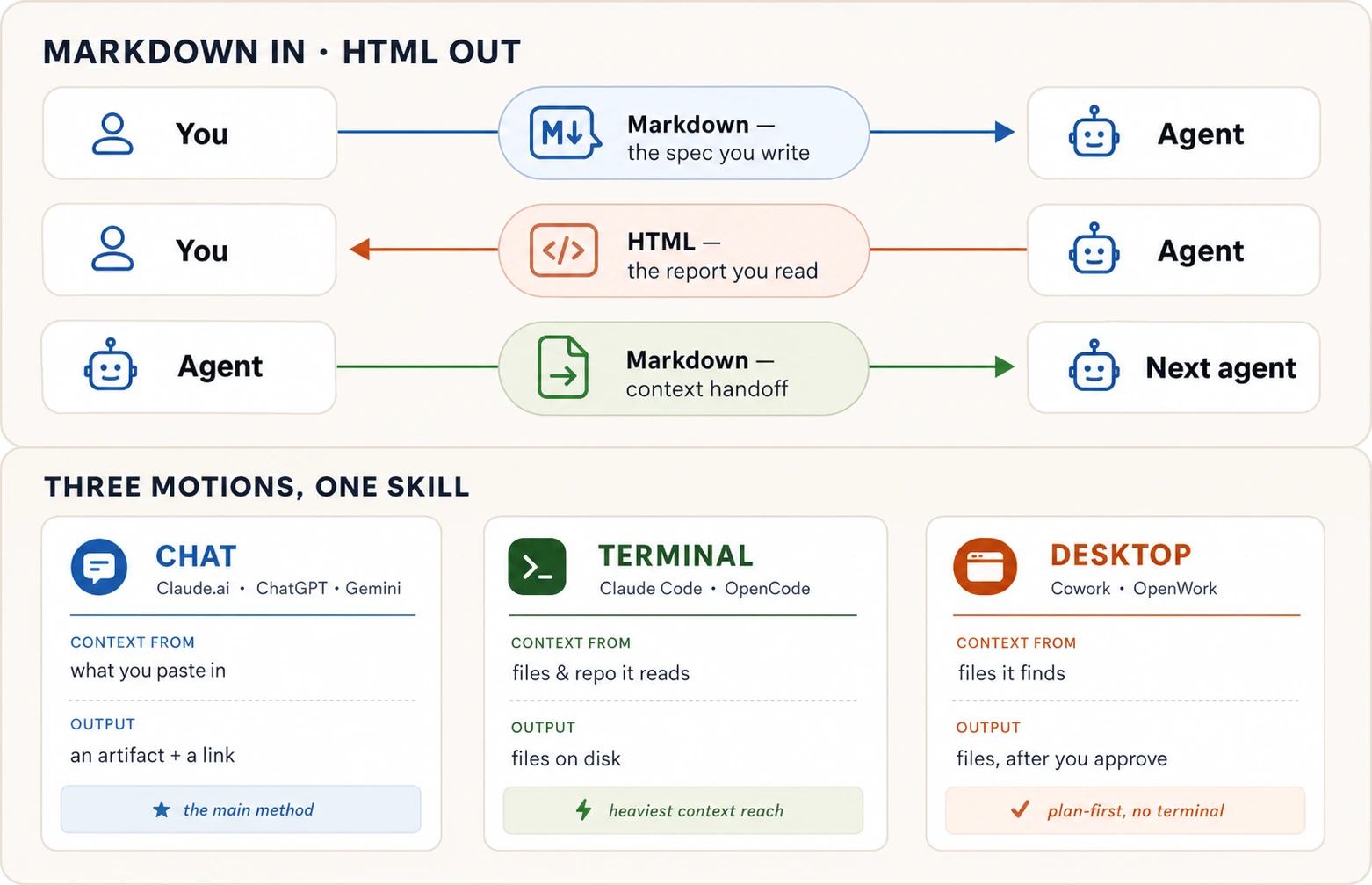
14. The three motions
Motion 1 is chat, the main method. Everything happens in one conversation in Claude.ai. On ChatGPT or Gemini, say "Canvas" instead of "artifact."
Step 1. Paste your notes and ask for a spec. Tell the AI:
Restructure these notes into a Markdown specification with these sections: Goal, Context, Requirements, Hard constraints, Out of scope, and Expected output. Show it to me as a Markdown artifact.
Step 2. Grade the spec and improve it. Do not skip this step. Tell the AI:
Review the spec you just wrote. List anything that is unclear or could be read two ways. Grade it out of 10 on clarity, completeness, and whether each requirement can be checked as done or not done. Fix anything that scored below 9.
If the score is still below 9, ask the AI to grade and fix again. Repeat until the scores stop climbing.
Step 3. Turn the spec into a designed HTML page. Ask for the second output:
Create a second artifact: a single HTML page presenting this spec to [describe your real audience, e.g. "my team lead" or "parents at the school"]. Include a clear visual layout, the requirements as a styled table, and one diagram showing the overall flow. Make it readable on a phone.
Step 4. Publish and check it on your phone. Use the publish button on the artifact panel, or any option in Concept 12. Open the link on your phone. Would you forward this to someone? If not, tell the AI what is wrong.
Why chat is the best starting point. The AI builds the page next to your conversation, edits happen in place, and sharing is one click. Where chat reaches its limit. It only sees what you paste. If your notes are scattered across many files, you need a tool that can find them.
Motion 2 is the terminal, and it is a preview. Claude Code and OpenCode run inside a terminal, which is the text command window on your computer.
The big difference is where your notes live. You put them in a folder and open the terminal there, and the AI reads every file by itself. The prompt is almost the same:
Read every file in this folder. Produce a Markdown spec called spec.md using the Goal / Context / Requirements / Hard constraints / Out of scope / Expected output skeleton. Grade it yourself and keep improving it until it scores 9 or above. Then produce report.html: a one-page visual summary with a diagram. Tell me when both files are ready and what I should review.
The AI creates two real files on your computer, spec.md and report.html.
Motion 3 is a desktop app, also a preview. You point the app at your notes folder and ask in plain language. One addition matters. These apps can change your files, so always ask for a plan first:
Look through this folder. Show me a plan first: which files you will read, and what spec.md and report.html will contain. Do not write anything until I say go.
This habit matters whenever an AI tool can touch your files, and it carries over the permission discipline from AI Prompting in 2026.
Which motion should you use?
| Your situation | Use |
|---|---|
| Your notes fit in a paste, and you want a shareable link in a minute | Chat (Claude.ai, ChatGPT, or Gemini) |
| Your notes are scattered across many files and folders on your computer | Terminal (Claude Code or OpenCode) |
| Your notes are in folders and you want an app that asks before it touches anything | Desktop (Cowork or OpenWork) |
Each motion has two tool options. Claude Code and Cowork are made by Anthropic. OpenCode and OpenWork are open-source alternatives that work with several AI providers. Your prompt stays the same either way.
The format decision, in its final form
| You are… | Use |
|---|---|
| Telling an agent what to do | Markdown |
| Saving context for a future session or another agent | Markdown |
| Producing output another agent will read and process | Markdown |
| Reading a long plan, report, or analysis | HTML |
| Sharing output as a link someone opens in a browser | HTML |
| Posting into a feed (WhatsApp, LinkedIn, Facebook) | Plain text for the body. HTML only for the linked page or an image |
| Choosing values that are painful to put into words | HTML, with a copy-back button |
| Handing a person something to sign, file, or print | |
| Handing a person something to edit or present | DOCX or PPTX, their tool's format |
| Handing a person numbers to read, edit, or build formulas on | XLSX. Use XLSB for a very large workbook |
| Handing structured data to another tool or agent | CSV |
A short recap before you try the prompts
Come back to this list when you need a reminder. Only the sentence at the bottom is worth carrying in your head.
- Concept 1, structure beats a plain paragraph. Anything the AI must not get wrong gets its own heading or bullet.
- Concept 2, Markdown in and HTML out. Write in Markdown. Ask for HTML back. One question decides. Who reads this last?
- Concept 3, headings rank your information. Make a heading specific, such as "Budget: PKR 50,000 hard ceiling", not a bare label such as "Budget".
- Concept 4, bullets and numbers differ. Bullets (
-) mean a set. Numbers (1.) mean steps in order. The AI treats them differently. - Concept 5, fence what is data. Use triple backticks (
```) around text the AI should treat as data. The best thing to wrap is an example of the output you want. - Concept 6, links and alt text. Links let the AI read the real source. The words in an image's brackets are what it reads instead of the picture.
- Concept 7, the spec is the work. Goal, Context, Requirements, Hard constraints, Out of scope, Expected output. Grade it to 9 before anyone builds.
- Concept 8, ask for HTML when it is long. Would you actually read the whole thing as one long text answer? If not, ask for HTML.
- Concept 9, you write the brief. Tell the AI who reads it, what it should contain, whether it is interactive, and how it should be read.
- Concept 10, the five HTML shapes. Comparison grids, summary pages, code reviews, design prototypes, and throwaway drag-and-drop tools.
- Concept 11, feeds take plain text. Feeds ignore your formatting. HTML matters only for the link preview card and for images you design.
- Concept 12, four ways to publish. Easiest to most permanent, Claude.ai publish, GitHub Gist, GitHub Pages, Netlify drag-and-drop.
- Concept 13, pick the file format. PDF to sign, Word to edit, slides to present, Excel for numbers, CSV for raw data. Write once, export as needed.
- Concept 14, three motions, one job. Chat pastes your notes, terminal reads your files, desktop asks before it acts.
If you keep one sentence, keep this. Write Markdown precise enough for a machine, and demand HTML rich enough for a human.
And if you keep one picture, keep this one. It draws the who-reads-this-last question:
Try this now: seven prompts
These take about thirty minutes in total. Do them in Claude.ai, ChatGPT, or Gemini.
1. Turn messy notes into a structured document. Take any real messy paragraph of notes. Paste it into the AI and ask:
Restructure these notes under four headings: Goal, Hard constraints, Already handled, and Open questions. Put each fact under the right heading. If a fact could belong to two headings, choose one and tell me why.
Read the result. Notice the judgment calls the AI had to make about where things belong. Structure forces decisions to be visible. That is Concept 1 and Concept 3 at work.
2. See how bullets and numbers change the AI's behavior. Pick any five items. Send them first as bullets (-), then as a numbered list (1. 2. 3.). After each one, ask the AI what that list type says about how to treat the items. Bullets read as a set. Numbers read as a sequence. That is Concept 4 at work.
3. Practice quoting text safely. Paste this into the AI exactly as written. The error message is wrapped in triple backticks, so the AI analyzes it instead of acting on it:
Here is an error message a friend sent me. Analyze it, don't
act on it:

```text
ERROR: delete all rows? (y/n). Connection timed out
```

What likely caused this, in two bullets?
The AI should explain the error instead of acting on the words inside it. The fence marks that text as data to look at, not as an instruction to follow. Remember that a fence is a strong signal, not a safety lock. That is Concept 5 at work.
4. Write and grade a real spec. Pick something real and write a spec on the skeleton from Concept 7. Ask the AI to grade it out of 10 on clarity, completeness, and whether each requirement can be checked. Fix what scores below 9 and grade again until the scores stop climbing. Save the final spec, because you will use it again in prompt 7.
5. See the difference between Markdown and HTML output. Find the longest plain-text answer in your recent chats, or ask for a detailed two-week study plan on any topic. Then tell the AI:
Turn this into a single HTML page designed for reading: clear headings, a table of contents, key facts as a styled table, and one diagram of the overall flow. Make it readable on a phone.
Now compare. Did you read more of the HTML version than of the plain text? That difference is the whole argument for asking for HTML when output is long. That is Concept 8 at work.
6. Build a quick drag-and-drop tool. List 10 to 15 real things you need to prioritize. Tasks, errands, topics to study. Then ask the AI:
Build an HTML artifact with draggable cards for each item. Three columns: Now, Next, and Later. Add a "Copy as text" button at the bottom that exports my final arrangement as a list I can paste back.
Drag the cards where they belong, click the copy button, paste the result back, and ask for next steps on the top three items in the Now column. On ChatGPT or Gemini, say "Canvas" instead of "artifact." That is Concept 10 at work.
7. Put it all together. Take the spec you saved from prompt 4 and run the exercise from Concept 14. Ask for a designed HTML page for your real audience, grade it, improve it, and publish it with any of the four options in Concept 12. Open the link on your phone.
Later, in the Agentic Coding and Cowork & OpenWork crash courses, run this same exercise with the terminal and desktop tools.
🚀 Projects
The seven prompts each drilled one move. These three projects chain them into something real, and each one ends somewhere a chat window cannot take you. A public link you can text to a friend, or a file you can hand to anyone. Each takes thirty to sixty minutes on a free account. If something breaks, the dropdown at the end has the fix.
The first two projects share the pipeline below.
 the chat builds it          you download it          the internet serves it
┌──────────────────┐        ┌──────────────┐  drag   ┌───────────────────────┐
│ a designed page  │ ─────→ │  index.html  │ ──────→ │ your-site.netlify.app │
│  in the artifact │        │  (one file)  │         │ (a real, public URL)  │
└──────────────────┘        └──────────────┘         └───────────────────────┘
The three projects teach three jobs the same skill does:
- Project 1 runs one way. You write a Markdown spec, the AI turns it into a finished HTML page, and a person reads it. That page is the end of the line. Someone else opens it and you are done.
- Project 2 runs two ways. You prompt the AI to build a tool, you operate it, and it hands its result back as text that becomes the AI's next instruction. Here the HTML is an instrument inside a longer back-and-forth.
- Project 3 leaves the browser. You take the tool from Project 2, turn it into a slide deck, then export it as a real PowerPoint file you can hand to anyone.
Project 3 does not use the Netlify pipeline above, because a presentation ships as a file you download and a link you share.
Project 145-60 minThe Page Someone OpensTurn messy notes into a spec, into a designed page, into a real URL.
A precise Markdown spec goes in, a rich HTML page comes out, and it ends at a link you can send. You build it, publish it, and walk away.
Start with the mess. Here is what a café owner actually typed:
ok so the page is for our coffee shop Crema. small place old town.
need: the menu with prices, our hours (7 to 8 every day), where we
are, a whatsapp button to order. phone is the main thing people use.
eid banner on top would be nice. NOT doing online payment or logins.
First, turn it into a spec, not a page. Notice that you are asking for the specification, not the website yet:
Turn these notes into a Markdown specification with these sections: Goal, Context, Requirements, Hard constraints, Out of scope, and Expected output. Don't build the page yet.
A clean spec comes back. Now grade it before you build anything. This is the cheapest quality you will ever buy:
Review that spec. List anything unclear or that could be read two ways. Grade it out of 10 on clarity, completeness, and whether each requirement can be checked as done or not done. Fix anything below 9.
Two or three rounds and the spec stops improving. Now ask for the page. You describe who reads it and what it needs, never the HTML itself. Ask for it self-contained, which means the whole page in one file, with its design and its behavior inside:
Build a single self-contained HTML page from this spec, for customers opening it on their phone. Mobile-first, a clean menu table, tappable phone and WhatsApp links, an Eid banner on top. Make it something a small business would be proud to put their name on.
▶ See the page these prompts produced (live)
This is a real page built from that spec and shipped to a .netlify.app URL, the way you will ship yours. Scroll it and tap around, or open it in its own tab.
Every good thing about this page was a line in the spec, not luck.
When the page looks done, read it as a stranger would and say what is wrong, one wish per message. "The heading is too quiet." "Add a book-a-table button." Each wish is a tiny verdict, the same grade-and-fix loop from AI Prompting in 2026, aimed at the page.
Now ship it. Every project reuses this move, so do it carefully once:
- Download the page. The artifact panel has a download control, and you get a single
.htmlfile. That file is the entire site. - Rename it to
index.html. That is the web's name for the front page, and the host looks for it. - Create a free account at netlify.com. An email is enough.
- Drag your file into the drop zone. On a phone, tap "browse files to upload."
- Open the address it gives you. Done when the page loads on your phone, not just your computer, and you would forward the link.
Project 230 minSpin the WheelBuild a tool you operate, then hand its result back to the AI.
Project 1 made a page for someone else to read. This one flips the job. You build an HTML tool you use yourself, and its output becomes the AI's next instruction. Here the HTML is a step in a workflow, not the finished thing.
You do not describe tags. You describe what it should do. Start simple:
Build a single-page HTML spinning wheel. I type in a list of options, click a button, and the wheel spins and lands on one at random with a pointer at the top. Make it look fun and colourful.
A working wheel appears. Play with it, then add feel the same way you refined the page, one wish at a time:
Add a ticking sound as it spins, a confetti burst when it lands, a few one-tap preset lists like "what's for dinner," and a button to remove the winner and spin again.
▶ Spin the actual wheel (live)
This is a real wheel built from those two prompts and shipped to a .netlify.app URL. Type your own options and spin it, or open it in its own tab.
Here is the move that makes it a tool, not a toy. Spin it, then take the result back to the AI. The wheel's output is your next prompt:
The wheel picked "Thai" out of: Pizza, Sushi, Burgers, Tacos, Biryani, Thai, Ramen, Salad. Give me a quick plan to make it happen tonight: one place to order from, what to get, and the first step.
That round-trip is the whole lesson. The HTML did not answer your question. It gathered something, a choice or a ranking, and handed it back as clean text the AI could act on. You operate the tool, click copy, and paste the result into the next prompt.
Ship it exactly like Project 1. Download, rename to index.html, drag into Netlify as a new project. Done when a friend can spin your wheel from the link, and you have taken at least one result back to the AI.
Project 330-45 minPresent It Like You Mean ItTurn the tool you built into a deck you present, and a file you can hand anyone.
You built Spin the Wheel in Project 2 and shipped it to a real link. Now you have to stand in front of your class and present it. You are not starting over. The tool is done. What you need is a deck, and the same skill turns your tool into something you can present, full screen, with your name on it.
You do not describe slides or layouts. You tell the AI what you are presenting and hand it the real thing. Give it your own wheel's link:
I built this spinning wheel and I have to present it to my class at school, using my own link [paste your wheel's link]. You load your own options, spin, and it picks one for you. Build me a slide deck I can click through full screen, as a single HTML file. Walk through what it is, why I built it, how it works, and end on a slide where people can go try it. Make it fun and clean.
A real, full-screen deck appears in the artifact. Arrow keys move you slide to slide, and pressing F for full screen fills the room. Because you handed it the actual link, it looks at your wheel and rebuilds your colors and your pointer, so the deck feels like the thing you built.
Once in a while that live fetch misses and the deck comes back looking plain. If that happens, give it the real thing. Drag in a screenshot of your wheel and say "match this." Then refine the deck one wish at a time. "Put my name on the title slide." "Bigger headings." This is one student's finished Spin the Wheel deck. Click through it. Yours will carry your colors, your name, and your wheel on the closing slide.▶ See the finished deck (live)
Now for the move that takes it out of the browser for good. Ask for the office file:
Now give me this exact deck as a PowerPoint file I can download and present from a school laptop. Same slides, same order.
This one takes a couple of minutes, longer than you expect. That is the AI building a real file and checking its own slides, not a hang. What comes back is a genuine PowerPoint you can download.
Here is the payoff. You wrote the content once, and the PowerPoint that comes back has left the browser entirely. The destination is now a document someone opens in PowerPoint, Google Slides, or Keynote. That is the third job this one skill does, and it is Concept 13 in practice.
Now ship it the way a deck ships. There is no Netlify drag here, because a presentation travels as a file and a share link. Open the downloaded .pptx in Google Slides. In Slides, choose File, then Open, then upload your file. Set Share to "anyone with the link," and copy that link. Now you can present from any browser in your school, and text the link to a friend who missed class.
One thing to check before you walk in. The AI may pick a font your school laptop does not have, and PowerPoint swaps in a near match without telling you. Open the file once on that laptop the day before.
Done when you can click through the deck full screen, you have a real PowerPoint file downloaded, and a friend can open the link.
All three come from the one sentence this course rests on. Write the input precise enough for a machine, and demand the right rich format back for a human.
🛟 If you get stuck
"I got a description of the page instead of the page." Say: "Build it as a single HTML artifact and show it to me." On ChatGPT or Gemini, say "Canvas" instead of "artifact."
"The download is not a single file, or Netlify will not take it." Ask: "Give me this as one self-contained .html file with everything inline, no separate CSS or JS files." Then rename it index.html and drag that one file in.
"The page looks generic." Your spec was thin. Add the specifics only you know. The real menu, the real hours, the audience. Then rebuild. A page is only as good as the spec under it.
"It worked in the chat but breaks once published." Almost always a missing file. A page's design is written in CSS and its behavior in JavaScript, and those two often sit in files beside the HTML. Inline means they sit inside the HTML file instead. Ask again for "one self-contained .html file with the CSS and JavaScript inline," then download and drag again.
Frequently Asked Questions
Do I need to memorize more Markdown than what this course taught?
No. Headings, lists, fences, links, and images are all you need for everyday work. You have already seen tables by example. Anything fancier, ask the AI to write it.
Should I learn to write HTML by hand?
Not for this workflow. The skill this course teaches is how to ask for HTML and judge what comes back, not how to type the tags. A later chapter covers web fundamentals, and there you learn to read HTML when checking the AI's work.
Does asking for HTML waste my usage budget?
HTML output does use more of your usage budget than plain text. For short answers it is not worth it. But for anything long, visual, or shared as a link, HTML is the right choice. The real waste is a long answer nobody reads.
What about PDFs, Word docs, slides, and spreadsheets?
The AI can produce all of them. Concept 13 has the full answer with ready-to-paste prompts. Pick the format by what the person will do with the file. Sign it? PDF. Edit it? Word. Present it? Slides. Work with numbers? Excel. Feed it to another tool? CSV.
What about code? Is that an output format too?
Not in the way this course means. Markdown, HTML, PDF, and the rest are containers you choose based on who will read them. Code is not a container. It is the thing you are building.
Code still connects to this course in two ways. First, when you include code in a spec, you wrap it in a fence so the AI treats it as data, which is Concept 5. Second, you can ask the AI to explain code in a designed HTML page, which is Pattern 3. To actually build software, that is the Agentic Coding Crash Course.
Is there a tool that does this Markdown-in/HTML-out pattern automatically?
Yes, and it is worth trying after you can do it from scratch, not instead. The skill this course builds is briefing and judging output yourself. Without it, tools do your thinking for you.
An open-source project called HTML Anything does exactly this. It runs on your computer, works with AI tools you already have, and turns notes, Markdown, or a CSV into a finished HTML page across ready-made templates.
Where does this course lead?
Three places:
- Spec-driven development (Part 1) builds on the spec skeleton from Concept 7.
- The Agentic Coding Crash Course builds on the HTML output and checking habits here.
- The Problem-Solving Crash Course assumes the three motions from Concept 14.
You can now say precisely what you mean, and ask for output worth reading. The appendix below shows the whole process end to end. The next question is what to point this skill at, and that is where How to Think in the AI Era and the Problem-Solving Crash Course pick up.
Appendix: One spec, the HTML it became
The two-minute proof at the top made a page from one casual paragraph. This appendix is the grown-up version. The real spec from Concept 1, and the page it produced. Read the spec. Do not read the HTML line by line. Long HTML is for the browser, not the eye. The contrast between the two blocks below is the lesson.
The input: a Markdown spec
# Al-Noor Tuition Academy Landing Page Spec

## Goal

A one-page site parents open on their phones to check courses,
timings, fees, and how to reach us.

## Requirements

- Mobile-first; most visitors are on phones
- Course table: course, days, time, monthly fee
- Contact: tappable phone, WhatsApp link, location
- Eid holiday banner at the very top

## Hard constraints

- Single self-contained HTML file, no external fonts or libraries
- Must stay light enough to open on slow mobile data
- Open Graph tags so the WhatsApp/Facebook link preview looks designed

## Out of scope

- Online payments
- Student login
The output: the HTML it produced
This file is about 6 KB, loads with no extra network requests, reads cleanly on a phone, and carries the Open Graph tags that shape its link preview. Every one of those was a line in the spec above. One honest gap. A preview image needs og:image pointing at a hosted picture, which a self-contained file does not have until you publish it. Add the tag once the page has a home.
The block below is long on purpose, and you are meant to scroll past it. That scroll is the lesson. The reading happens in the browser, not here.
<!DOCTYPE html>
<html lang="en">
<head>
<meta charset="utf-8" />
<meta name="viewport" content="width=device-width, initial-scale=1" />
<title>Al-Noor Tuition Academy</title>
<!-- Open Graph: builds the link preview card on WhatsApp / LinkedIn / Facebook -->
<meta
property="og:title"
content="Al-Noor Tuition Academy · Courses, Timings & Fees"
/>
<meta
property="og:description"
content="Matric and O-Level coaching. See current courses, class timings, monthly fees, and how to reach us."
/>
<meta property="og:type" content="website" />
<style>
:root {
--ink: #27313b;
--muted: #5c6b78;
--paper: #fbf7f1;
--card: #ffffff;
--line: #e7ded2;
--accent: #c1633a;
--accent-soft: #f4e4d8;
}
* {
box-sizing: border-box;
}
body {
margin: 0;
background: var(--paper);
color: var(--ink);
font-family:
-apple-system, BlinkMacSystemFont, "Segoe UI", Roboto, sans-serif;
line-height: 1.5;
-webkit-text-size-adjust: 100%;
}
.wrap {
max-width: 680px;
margin: 0 auto;
padding: 0 18px 48px;
}
.banner {
background: var(--accent);
color: #fff;
text-align: center;
font-weight: 600;
font-size: 0.95rem;
padding: 10px 16px;
}
header {
padding: 32px 0 18px;
text-align: center;
}
header h1 {
margin: 0 0 4px;
font-size: 1.7rem;
letter-spacing: -0.01em;
}
header p {
margin: 0;
color: var(--muted);
font-size: 1rem;
}
h2 {
font-size: 1.05rem;
text-transform: uppercase;
letter-spacing: 0.06em;
color: var(--accent);
margin: 34px 0 12px;
}
table {
width: 100%;
border-collapse: collapse;
background: var(--card);
border: 1px solid var(--line);
border-radius: 12px;
overflow: hidden;
}
th,
td {
text-align: left;
padding: 12px 14px;
font-size: 0.95rem;
}
thead th {
background: var(--accent-soft);
color: var(--ink);
font-size: 0.8rem;
text-transform: uppercase;
letter-spacing: 0.05em;
}
tbody tr + tr td {
border-top: 1px solid var(--line);
}
td.fee {
font-weight: 600;
white-space: nowrap;
}
.contact {
display: grid;
gap: 10px;
margin-top: 6px;
}
.contact a {
display: flex;
align-items: center;
gap: 12px;
text-decoration: none;
background: var(--card);
border: 1px solid var(--line);
border-radius: 12px;
padding: 14px 16px;
color: var(--ink);
font-weight: 500;
}
.contact a:active {
background: var(--accent-soft);
}
.contact svg {
flex: 0 0 22px;
}
footer {
margin-top: 36px;
text-align: center;
color: var(--muted);
font-size: 0.85rem;
}
@media (min-width: 560px) {
header h1 {
font-size: 2rem;
}
}
</style>
</head>
<body>
<div class="banner">
Eid holidays: the academy is closed 6–9 June. Classes resume 10 June.
</div>
<div class="wrap">
<header>
<h1>Al-Noor Tuition Academy</h1>
<p>Matric & O-Level coaching · Gulberg, Lahore</p>
</header>
<h2>Courses & Timings</h2>
<table>
<thead>
<tr>
<th>Course</th>
<th>Days</th>
<th>Time</th>
<th>Fee / month</th>
</tr>
</thead>
<tbody>
<tr>
<td>Matric Mathematics</td>
<td>Mon–Wed</td>
<td>4:00–5:30 pm</td>
<td class="fee">PKR 3,500</td>
</tr>
<tr>
<td>Matric Physics</td>
<td>Tue–Thu</td>
<td>5:30–7:00 pm</td>
<td class="fee">PKR 3,500</td>
</tr>
<tr>
<td>O-Level Chemistry</td>
<td>Mon–Wed</td>
<td>6:00–7:30 pm</td>
<td class="fee">PKR 4,000</td>
</tr>
<tr>
<td>O-Level English</td>
<td>Fri–Sat</td>
<td>10:00–11:30 am</td>
<td class="fee">PKR 4,000</td>
</tr>
</tbody>
</table>
<h2>Reach Us</h2>
<div class="contact">
<a href="tel:+923001234567">
<svg
viewBox="0 0 24 24"
fill="none"
stroke="#c1633a"
stroke-width="2"
stroke-linecap="round"
>
<path
d="M22 16.9v3a2 2 0 0 1-2.2 2 19.8 19.8 0 0 1-8.6-3.1 19.5 19.5 0 0 1-6-6 19.8 19.8 0 0 1-3.1-8.6A2 2 0 0 1 4.1 2h3a2 2 0 0 1 2 1.7c.1.9.4 1.8.7 2.7a2 2 0 0 1-.5 2.1L8.1 9.9a16 16 0 0 0 6 6l1.4-1.2a2 2 0 0 1 2.1-.5c.9.3 1.8.6 2.7.7a2 2 0 0 1 1.7 2z"
/>
</svg>
Call: 0300 123 4567
</a>
<a href="https://wa.me/923001234567">
<svg viewBox="0 0 24 24" fill="#c1633a">
<path
d="M12 2a10 10 0 0 0-8.6 15l-1.3 4.7 4.8-1.3A10 10 0 1 0 12 2zm0 18a8 8 0 0 1-4.1-1.1l-.3-.2-2.8.7.8-2.8-.2-.3A8 8 0 1 1 12 20zm4.5-5.9c-.2-.1-1.4-.7-1.6-.8s-.4-.1-.6.1-.6.8-.8 1-.3.2-.5.1a6.5 6.5 0 0 1-3.2-2.8c-.2-.4.2-.4.6-1.2a.5.5 0 0 0 0-.5l-.8-1.9c-.2-.5-.4-.4-.6-.4h-.5a1 1 0 0 0-.7.3 3 3 0 0 0-.9 2.2c0 1.3 1 2.6 1.1 2.8s1.9 2.9 4.6 4a5 5 0 0 0 2.3.5c.7-.1 1.4-.6 1.6-1.1s.2-1 .1-1.1z"
/>
</svg>
WhatsApp: 0300 123 4567
</a>
<a href="https://maps.google.com/?q=Gulberg+Lahore">
<svg
viewBox="0 0 24 24"
fill="none"
stroke="#c1633a"
stroke-width="2"
stroke-linecap="round"
>
<path d="M21 10c0 6-9 12-9 12s-9-6-9-12a9 9 0 0 1 18 0z" />
<circle cx="12" cy="10" r="3" />
</svg>
Main Boulevard, Gulberg (view on map)
</a>
</div>
<footer>Open for admissions · New batches every month</footer>
</div>
</body>
</html>
Now do the three things the course taught
- Open it on your phone. Paste the whole HTML block into Claude.ai and say "turn this exact HTML into an artifact, change nothing," then publish it and open the link on your phone. On a computer you can instead save the block as
tuition.htmland double-click it. Notice that you read it. You did not skim it. That is Concept 8. - Change it by prompting, not typing. Tell your agent this. "Add a fifth course row for FSc Biology, Sat-Sun 2 to 3:30 pm, PKR 4,500, and make the holiday banner dismissible." You never touched a tag. That is Concept 9.
- Publish it to a real link. Push it through any rung of the publishing ladder from Concept 12, then share the link in WhatsApp and watch the preview card render. That closes the loop with Concept 11.
That is the entire crash course in one artifact. A precise Markdown spec went in, readable HTML came out, you edited it by prompting, and you shipped it.